1Getting started
Readcast plays podcasts and "voiced" articles from a single playback list. Launch the app and sign in with your Google account or Apple ID. Once signed in, your library and playback positions sync across devices (sync is a Pro feature — if you only want to play podcasts, you can keep using Readcast for free).
2Adding shows and article sources
Add a podcast show
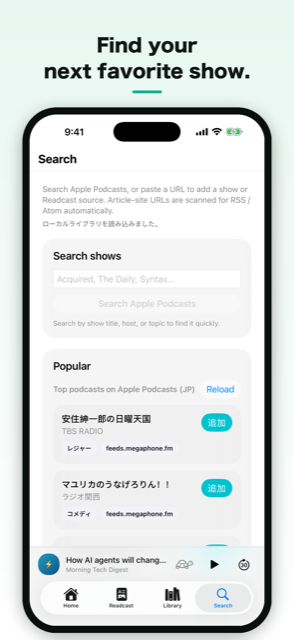
- Open the Search tab.
- Search Apple Podcasts by show name, host, or topic, or pick from the Top Charts.
- Tap Add to subscribe. New episodes will appear in your playback list.
If a show is missing from search, paste its feed URL into Add show via RSS on the Search tab and tap Preview & add.
Add an article source (news site or blog) PRO
- On the Search tab, paste the URL of the site, or of its RSS/Atom feed, into Add Readcast source and tap Find & preview. If you paste a site URL, Readcast looks for its RSS/Atom feed automatically.
- The Import preview opens. Nothing is subscribed yet. You can see the list of articles and whether the full text can be fetched (Body OK / Summary only / Unavailable). Tap an article to read a sample.
- Tap Subscribe as an article source to add it. New articles are then fetched, voiced automatically, and placed in your playback list. Tap Cancel and nothing is added.
If most articles show "Summary only", the site may require sign-in or not publish its full text. Subscribing would read only the summaries.
Add from your browser's share menu
You can add a show or a site straight from the page you have open in Safari, Chrome, or another app, without pasting a URL. The steps are the same for podcasts and article sites.
- Open the page of the show or site you want to add and tap your browser's Share button.
- iPhone: choose Readcast in the share sheet and confirm, then open Readcast.
Android: choose Readcast in the share menu. Readcast opens. - Check the contents in the Import preview, then tap Subscribe as an article source or Subscribe as a podcast.
- What gets added is the site's feed (its list of new items), not the single page you shared.
- The type (articles or podcast) is detected automatically. For feeds that carry audio, you can switch between As articles and As a podcast in the preview.
- If Readcast does not appear in the iPhone share sheet, scroll the row of apps to the end, tap More, and add Readcast.
- Sites without an RSS/Atom feed cannot be added.
3Home and the playback list
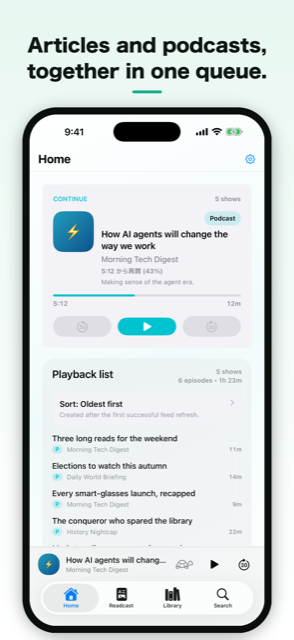
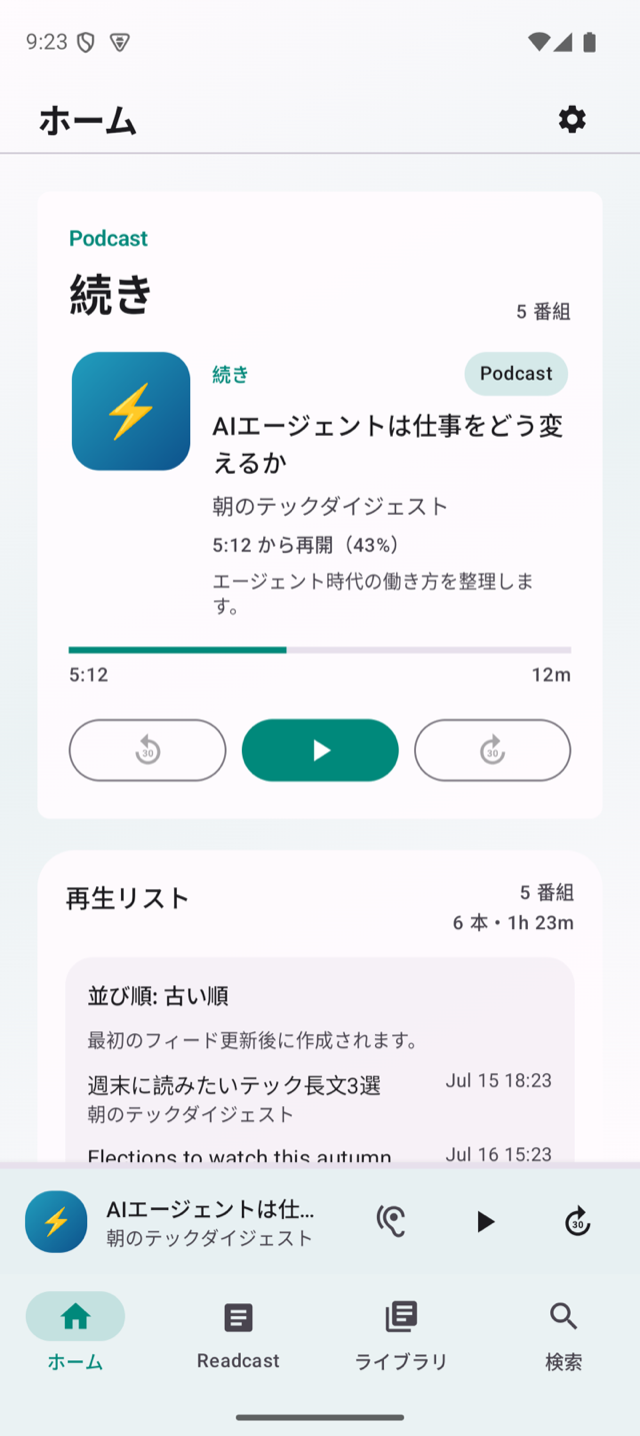
The Home tab shows Resume (episodes you are partway through) and your playback list. The playback list is your daily listening queue: new episodes from subscribed shows and voiced articles, in chronological order.
- Sort order — switch between oldest-first and newest-first. Oldest-first is handy for working through a backlog.
- Continuous playback — when an episode ends, the next playable one starts automatically.
- Waiting for an article — if the next article's audio isn't ready yet, playback pauses briefly and resumes on its own. If you pick something else while waiting, your new choice wins; the earlier article keeps preparing in the background and won't interrupt you when it's done.
- Finished episodes — completed episodes drop off the playback list.
- Episodes that can't be played — if an episode can't be played (for example, the publisher listed it in the feed before uploading the audio file), it is skipped automatically and hidden from the playback list. Readcast checks with the publisher whenever the show refreshes, and the episode returns to the playback list on its own once it's playable. It stays in the show's episode list, marked "The publisher hasn't uploaded this file yet."
Switching which list you listen to
The chips at the top of Home switch between Playback list / Listen Later / Favorites / your own lists. Your choice is saved to your account and shared between iOS and Android. On Android Auto, pick a list (Playback list / Listen Later / Favorites) from the list view on the car display.
- Listen Later — episodes leave the list automatically once you finish them.
- Favorites — episodes stay on the list after you finish them. With Favorites selected, playback runs through the list in order and stops after the last item.
- Remove from a list — long-press a row to remove it.
When the playback list runs out
You can decide, per show, what happens once every item in the playback list has been played. Open Library → the show → Playback settings and pick an option under When the list runs out (iOS 1.4 / Android 1.4 and later).
- Stop playback (default) — playback stops when the list is empty.
- Play unplayed, newest first — keeps going with the show's unplayed episodes, newest first.
- Play unplayed, oldest first — keeps going with the show's unplayed episodes, oldest first.
If several shows are set, the show with the higher playback-list priority is used first. The setting syncs across your devices. The line under the setting shows Episodes / Unplayed counts so you can tell whether it will do anything: shows whose feed only lists a few recent episodes won't play anything unless some are still unplayed. When you are listening to Listen Later or Favorites, playback stops at the end of that list regardless of this setting.
4Reading and listening to articles
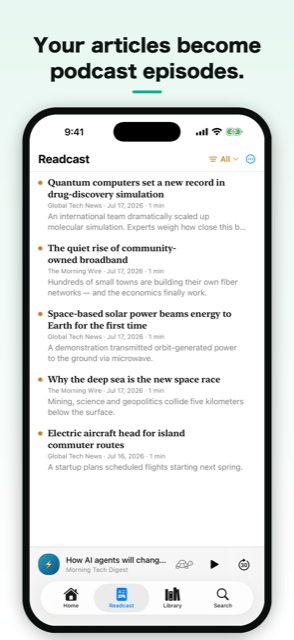
The Readcast tab lists the articles fetched from your article sources. Tap one to read it in reader view. Once an article has been voiced, you can listen to it straight from the playback list.
- Filter — use the menu at the top to show, for example, all articles or only unread ones.
- Read status — articles are marked as read automatically once you open them, and the filter reflects this.
Article reader
Tapping an article opens a reader view with just the article body — no ads or menus (same on iOS and Android).
- Text size — tap the "Aa" button in the toolbar to choose Small / Medium / Large / Extra Large.
- Listen Later / Favorites — the bookmark and heart buttons at the top right pin the article's audio to those lists.
- Listen — the headphones button at the top right plays the article's audio right away. If the audio hasn't been generated yet, generation starts on the spot.
5Turning articles into audio PRO
Article audio is generated on your device automatically. There is normally nothing to do: articles are prepared in the background, in order, before playback reaches them.
- Automatic generation — audio is generated ahead of time, following the order of your playback list. A progress bar appears at the top of the screen while it runs.
- Body extraction — boilerplate such as ads and subscription prompts is stripped so only the article body is read aloud.
- Pronunciation dictionary — abbreviations and proper nouns are converted to natural readings.
- Language detection — English articles are read with an English voice, Japanese articles with a Japanese one.
- Reading voice — pick a voice under Settings → Reading voice. After a change, article audio on this device is regenerated with the new voice.
- Regenerate audio — long-press an article row in the Readcast tab and choose Regenerate audio to rebuild just that article's audio.
6Cloud voice (AI formatting / AI voice) PRO
Cloud voice is an option for finishing article audio in the cloud (version 1.8 and later). It can tidy the article text with AI so it is easier to follow by ear, and read it aloud with Google's natural voices. Each use draws on the balance of a cloud voice pack. Article audio is a Pro feature, so cloud voice is used together with Pro.
Buying a pack
- Open Settings from the gear icon at the top right of Home and scroll to Cloud voice.
- Tap Buy a 10-hour pack (¥1,000). The amount shown is the price in Japan; elsewhere the store charges its local price.
- Once the purchase completes, your Balance goes up by 10 hours. It can take a few seconds to show.
Packs are sold in the iPhone and Android apps (not in the Chrome extension). The balance belongs to your account, so it is shared by iPhone, Android, and the Chrome extension signed in with the same account. You can buy more at any time; balances add up.
Choosing how to use the cloud
Under Settings → Cloud voice → Cloud, choose one of three options.
- Off (default) — articles are read with the device voice, as before. No balance is used.
- AI formatting — the article text is tidied by AI, then read with the device voice. It splits long sentences, turns parentheses, symbols, units and model numbers into something you can follow by ear, and drops screen-only fragments such as photo captions. Style and content are left unchanged.
- AI formatting + AI voice — the formatted text is voiced with Google's natural voices. Choose Female / Male under Cloud voice.
English articles are read with an English voice. Rewording for listening applies to Japanese articles only; for English articles, only the article body is extracted.
How the balance is used
- AI formatting + AI voice — the length of the audio produced (a 5-minute article uses 5 minutes).
- AI formatting — one eighth of how long the article would take as AI voice (a 5-minute article uses about 40 seconds). A 10-hour pack covers roughly 900 or more average articles this way.
- When nothing is deducted — with no balance, no connection, or a failure on the cloud side, nothing is deducted and the original text is read with the device voice. Listening to the same article on another device, or regenerating it with the same voice, doesn't use the balance twice.
Balance and usage history
Settings → Cloud voice shows your current Balance, and Usage history lists purchases and usage (article title and time used). AI formatting entries are shown as "AI formatting: article title".
Sync and changing the voice
- Sync — the Cloud and Cloud voice settings sync with your account, so a change on one device applies to the others.
- Voice changes apply to the next article — after switching between female and male, or turning AI voice on, audio that has already been made is kept and the new setting applies from the next article (so the balance isn't spent twice). To hear an article again in the current voice, long-press its row and choose Regenerate audio; after a voice change this uses balance for the new voice.
- Turning AI voice off — switching from AI formatting + AI voice to Off or AI formatting regenerates AI-voiced articles with the device voice. This doesn't use any balance.
- AI voice badge — articles made with AI voice show an "AI voice" badge in the playback list, the article rows, and the player.
7Using the player
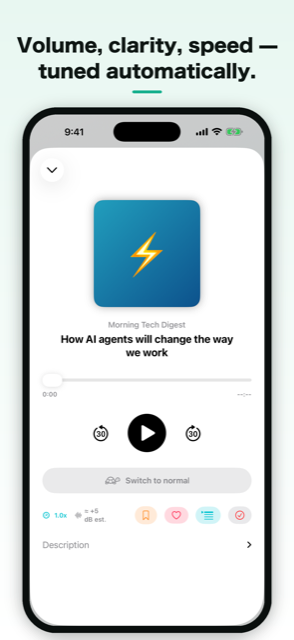
Tap the mini player at the bottom of the screen to open the full player.
- Skip forward / back 30 seconds — large buttons that are easy to hit, even while driving.
- Playback speed — 0.8x to 3.0x. Set a global default, then override it per show or per episode.
- Turtle button — one tap temporarily drops to normal speed (1.0x), so you can slow down just for a hard-to-catch passage.
- Sleep timer — tap the moon icon next to the speed menu and choose 30 minutes / 1 hour / Custom (enter minutes); playback stops when the time is up. While the timer is running, the remaining time is shown next to the icon, and Off in the same menu cancels it. Your custom minutes are remembered for next time.
- Volume leveling — evens out loudness differences between shows.
- Speech Clarity — boosts the vocal range so speech stays intelligible in noisy places.
- Listen Later / Favorites — pin the episode to those lists.
- Mark as played — treat the episode as finished and remove it from the playback list.
8Library
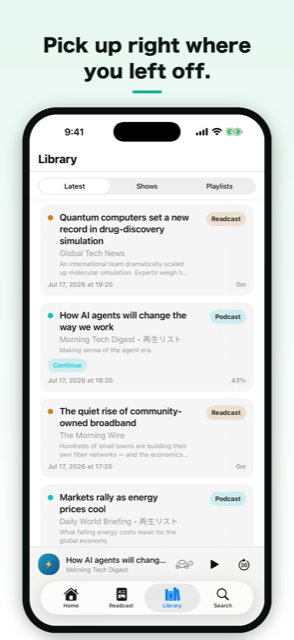
The Library tab is an overview of everything you have.
- Latest — a combined feed of new episodes and articles across all shows, with playback progress (%).
- Shows — your subscribed shows and article sources. Per-show settings (speed, volume, and so on) live here too.
- Playlists — manage the playback list, Listen Later, and Favorites. Long-press to remove an item from a list.
9Syncing across devices PRO
Sign in with the same account and the following stays in sync between iOS, Android, and the Chrome extension.
- Subscribed shows, article sources, and the playback list
- Playback positions (pick up where you left off on another device)
- Playback settings (per-show speed, volume leveling, and so on)
- Listen Later, Favorites, and played status
- Cloud voice settings (Cloud, Cloud voice) and your balance
10Chrome extension PRO
You can play the same library in Chrome on your computer. Install the extension, sign in with the same account, and continue your playback list at your desk. You can also send the article page you are reading straight to Readcast.
Cloud voice (AI formatting / AI voice) works in the Chrome extension too: AI formatting is read with the browser's voice, and AI formatting + AI voice plays Google's natural voices. Packs are bought in the iPhone or Android app, and the balance is shared across your account.
11Listening with Android Auto
Readcast appears on Android Auto–compatible car displays. Get in, pick Readcast, and continuous playback resumes from where your playback list left off.
- While driving, only episodes and articles whose audio is ready are played, in order.
- If the next article's audio is still being generated, playback resumes automatically as soon as it's done.
12Settings
Open Settings from the gear icon at the top right of Home.
- Language — System / 日本語 / English
- Default speed — the speed used when a show or episode has no override
- Downloads — download on Wi-Fi only, on or off
- Reading voice — the voice used to read articles. Choose from the TTS voices installed on your device (add voices from your OS settings → Text-to-speech)
- Playback history — episodes you've finished, newest first. Tap one to play it.
- Cloud voice — Cloud (Off / AI formatting / AI formatting + AI voice), Cloud voice (Female / Male), Balance, buying a 10-hour pack, and Usage history (see Cloud voice)
- Account — sign out / delete account
- Subscription — view your plan / restore purchases
Update notifications
When a new version is available, the app lets you know at launch and can take you straight to the store's update page. In the Chrome extension, a "Reload to update" banner appears at the top of the window once a new version has been delivered.
13Troubleshooting
Reporting a playback or sync problem
- Open Settings and scroll to the Diagnostic log section.
- Tap Save (saves to your device's downloads) or Share.
- Send the log to support@sanei.m7e.org. The log records playback, sync, and audio-generation activity; it does not include article text or personal notes.
Article audio is slow to appear
Audio is generated one article at a time, so it can take a while right after a large batch of articles is fetched. Keeping the app open lets generation continue.
An article was read with the device voice instead of AI voice
With no balance, no connection, or a failure on the cloud side, nothing is deducted and the original text is read with the device voice. Check Balance under Settings → Cloud voice. Right after changing the voice or the Cloud setting, the new setting applies from the next article.
An episode disappeared from the playback list
Episodes that couldn't be played — for example because the publisher hasn't uploaded the audio file yet — are hidden from the playback list. Readcast checks with the publisher when the show refreshes and brings the episode back once it's playable. You can still open it from the show's episode list.
An article is cut off partway through
Some sites don't publish the full article text in their feed, so only the opening may be available (for example, paywalled articles). In that case, open the article and read it on the original site.
14About Readcast Pro
Searching, subscribing to, and playing public podcasts is free. Upgrading to Readcast Pro unlocks:
- Adding article sources and automatic article-to-audio conversion
- Syncing your library and playback positions across iOS, Android, and the Chrome extension
You can purchase Pro inside the app. If your purchase isn't showing after switching phones, try Restore purchases under Settings → Subscription.
Cloud voice pack
The balance used by AI formatting and AI voice comes from the cloud voice pack, sold separately from Pro (10 hours for ¥1,000 in Japan; local pricing elsewhere). It is a one-time purchase of balance, not a subscription. See Cloud voice for how it works.